Add a Natural-Looking Shadow to an Image
Add a shadow around an existing subject in one authorized image. Describe the direction, softness, length, and receiving surface while the edit stays limited to the new shadow and nearby surface lighting.
Sign in required before running this tool.
No Credits are charged until you run the tool.
Optionally describe the shadow direction, softness, length, and the existing floor, wall, or tabletop that should receive it.
What is Image Shadow?
Use Image Shadow when a product cutout or placed object needs visual contact with a floor, tabletop, or other visible surface. The tool edits one private PNG, JPEG, or WebP, adds only the requested shadow plus nearby surface lighting, and preserves the subject's shape, color, framing, background, and ownership marks. It does not replace the background, reshape the subject, or create an editable shadow layer.
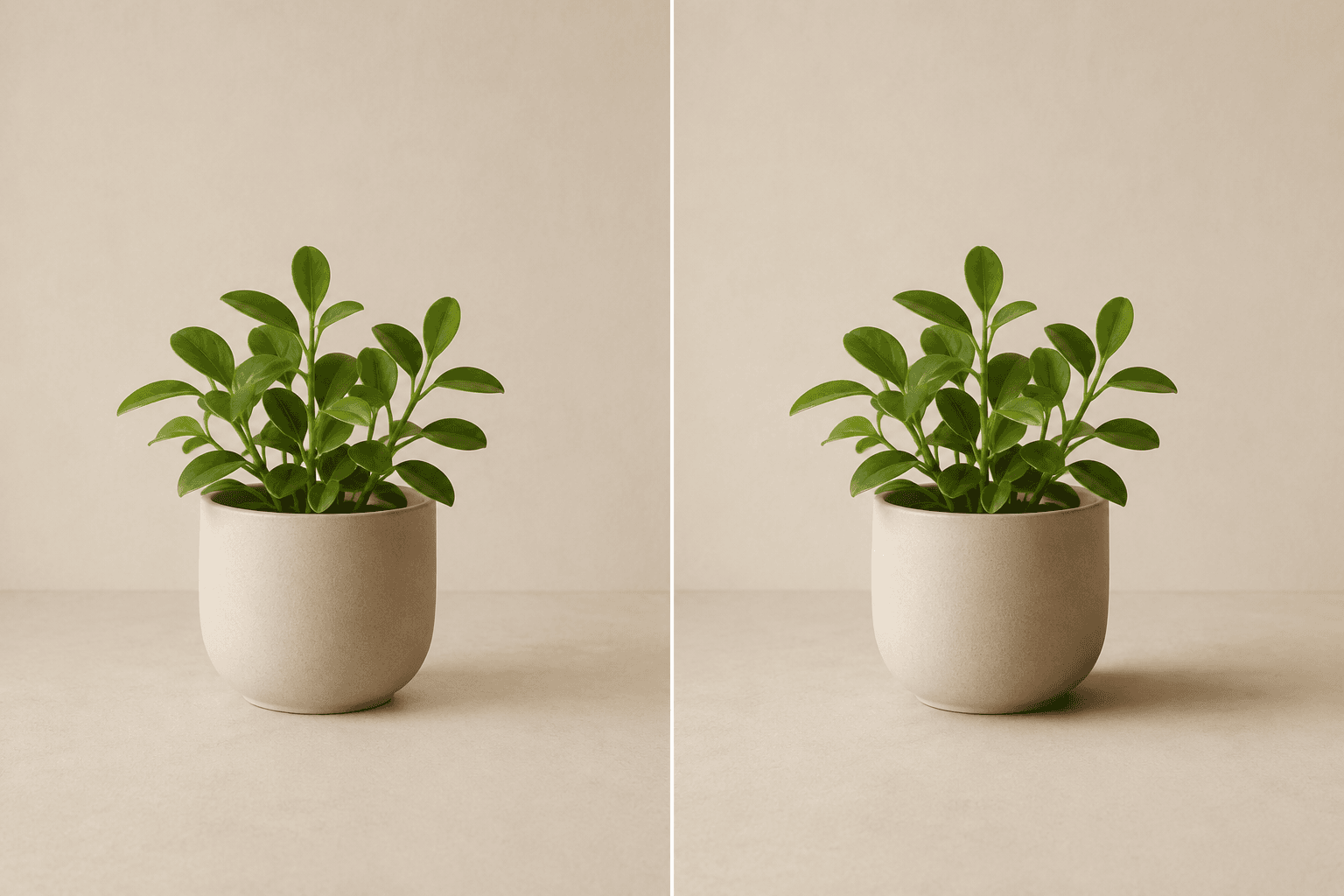
Does a product or cutout look like it is floating?
Identify the visible surface and light direction so a restrained shadow can ground the subject without redesigning the source image.
How to use Image Shadow
- 1
Choose one clear source image
Upload one private PNG, JPEG, or WebP that shows both the subject and the surface where the shadow should appear.
- 2
Identify the receiving surface
Confirm whether the existing floor, tabletop, wall, or another visible area should receive the new shadow.
- 3
Describe the shadow character
Optionally specify direction, softness, approximate length, and light relationship in 4 to 2,000 characters.
- 4
Run the bounded shadow edit
Start the edit knowing that only the shadow and nearby surface lighting may change around the preserved subject.
- 5
Inspect contact and preservation
Review the contact point, direction, and edge softness, then confirm the product shape, colors, marks, framing, and background remain intact.
Examples
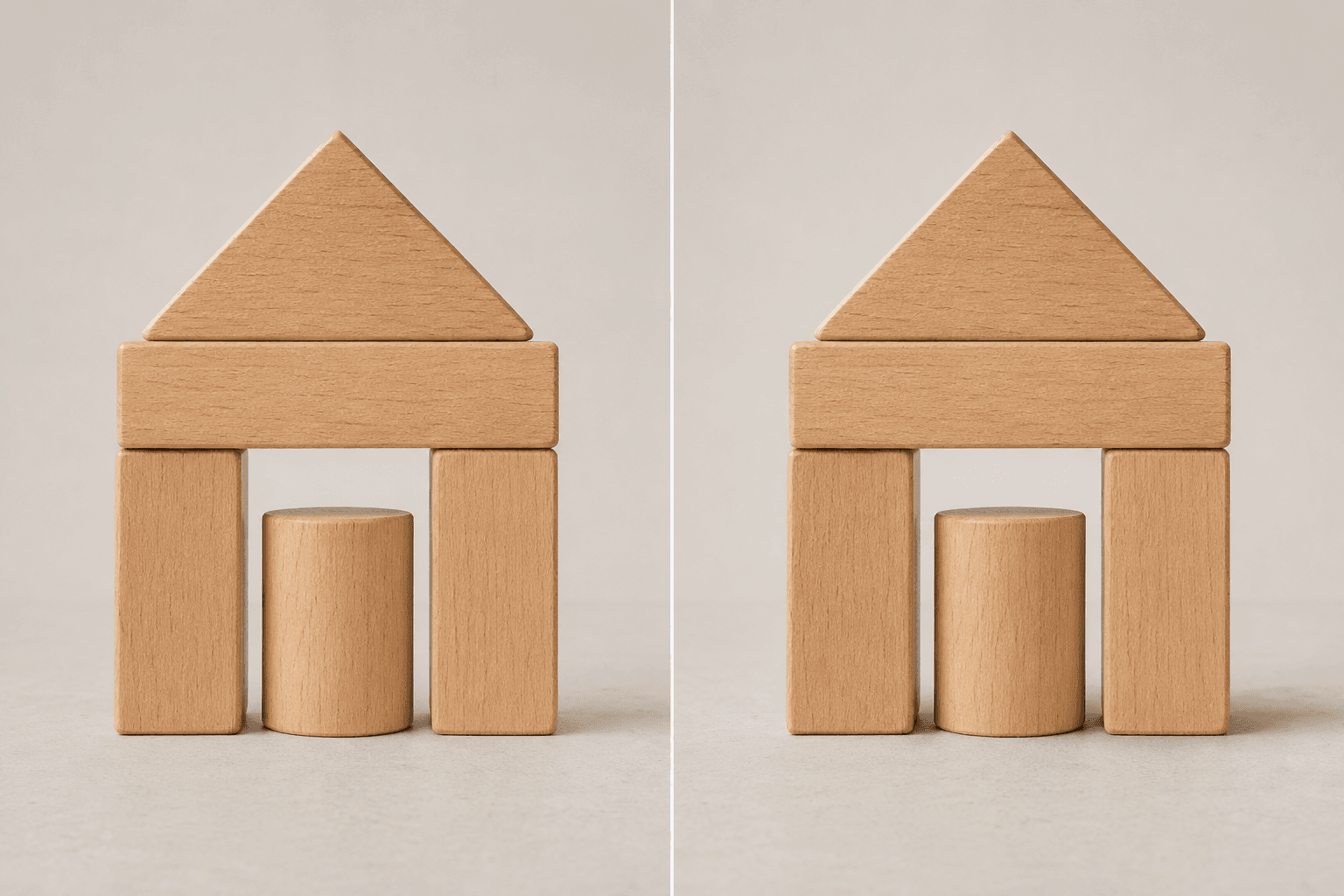
Wooden toy grounding
Add a short soft shadow beneath and slightly right of the wooden toy on the existing tabletop; keep the toy shape, wood colors, crop, and background unchanged.
One private raster with the original wooden toy preserved and a bounded tabletop shadow.
Use cases
Add contact depth below a product already photographed on a visible surface.
Make an authorized cutout sit more naturally without replacing the existing background.
Compare a restrained cast-shadow direction before final design production.
Why use Image Shadow?
Direction-aware shadow brief
Optional instructions can name the shadow direction, softness, length, and receiving surface.
Local lighting boundary
Only the new shadow and nearby surface lighting may change during the edit.
Subject and scene preservation
Subject geometry, color, framing, background content, and ownership marks remain protected.
Private flattened result
A successful edit is saved to My Media as one private PNG raster with source lineage.
Limits
FAQ
What kind of shadow can I request?
Describe the direction, softness, approximate length, and the existing surface that should receive the shadow. The request remains bounded to a natural-looking cast or contact shadow around the source subject.
What source image gives the clearest shadow instructions?
Use one clear image where the subject and intended floor, wall, or tabletop are visible. When the contact area or light direction is ambiguous, add precise optional details and inspect the result carefully.
Will the edit change the subject or background?
It must preserve the subject's geometry, color, framing, background, and existing ownership marks. Only the new shadow and local surface lighting around it are allowed to change.
Can Image Shadow remove a background or return a separate layer?
No. Background replacement and removal are separate tasks. This tool returns one flattened raster with a composited shadow rather than a transparent shadow file, editable mask, or layered design document.
Which files and image sizes are supported?
Choose one authorized PNG, JPEG, or WebP up to 20 MB. The source must be between 64 and 4096 pixels on each side, and only one image can be edited per run.
Where are the source and completed image kept?
The source is handled as a private image for the signed-in run. A successful PNG result is saved privately to My Media with its source relationship so you can review or reuse it.
What happens if no usable shadow image is saved?
A refusal, technical failure, or empty result does not create a usable saved image. The existing Credit release or refund policy applies, and you can revise the bounded shadow instructions before another run.
Related tools
Start using Image Shadow now
Add a shadow around an existing subject in one authorized image. Describe the direction, softness, length, and receiving surface while the edit stays limited to the new shadow and nearby surface lighting.
Run Image Shadow