Object Remover
Remove only the user-selected object and preserve unrelated content.
Sign in required before running this tool.
No Credits are charged until you run the tool.
Describe the local change while the fixed service rules remain in force.
What is Object Remover?
Object Remover takes out one thing you point at — a stray bin, a photobomber's elbow, a cable across the sky — and rebuilds only the area behind it, leaving the rest of the photo untouched. Describe the object and its location precisely; the preservation rules keep everything you didn't mention exactly as shot.
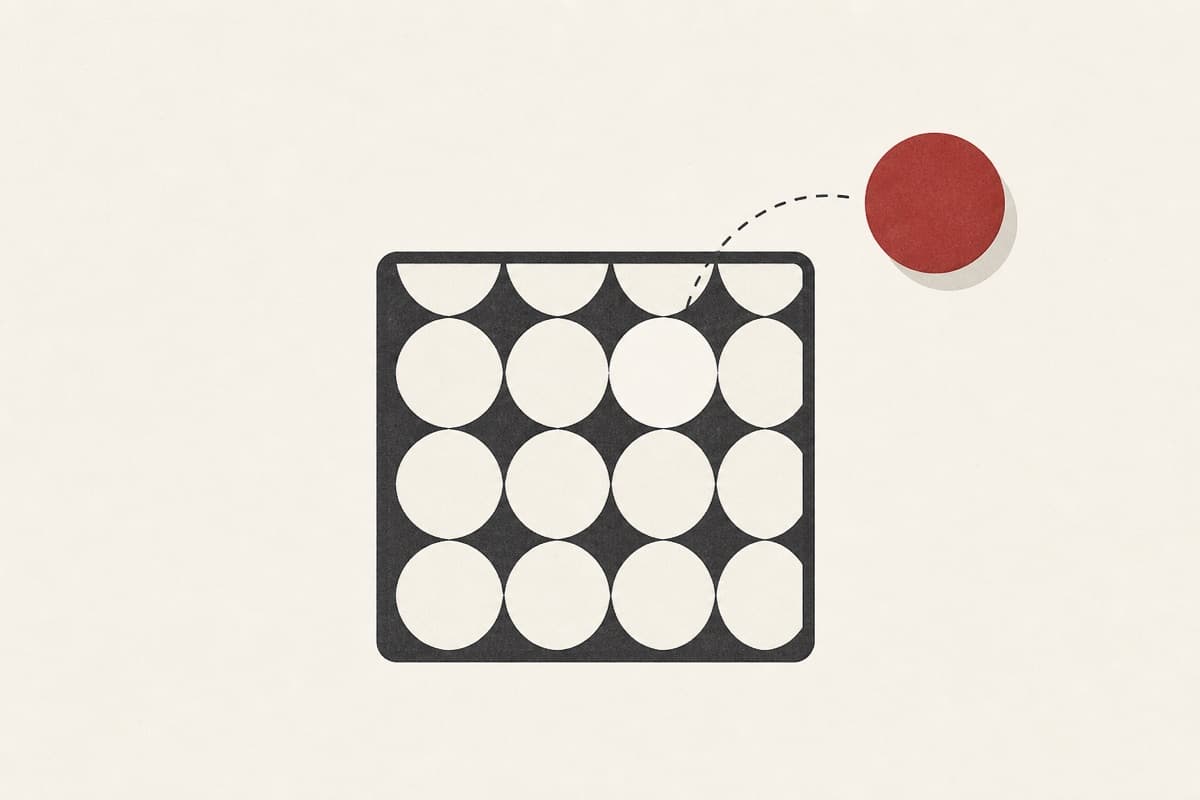
One object ruining an otherwise perfect shot?
Name it, remove it, keep everything else pixel-for-pixel — no cloning stamps, no accidentally smearing half the background.
How to use Object Remover
- 1
Choose the permitted photo
Select one private image you are allowed to edit.
- 2
Name the object and location
Describe its color, shape, and exact position so only the intended area changes.
- 3
Run the bounded removal
Start the edit with the fixed preservation and safety rules in force.
- 4
Inspect rebuilt surroundings
Zoom into edges and repeated textures before keeping the private PNG result.
Examples
Beach cleanup
Remove the orange traffic cone on the left edge of the sand.
The cone is gone; sand texture rebuilt locally; everything else unchanged.
Use cases
Remove strangers and clutter from scenic shots.
Take stray props out of listing images.
Clear bins and cars from exterior shots you own.
Why use Object Remover?
Fixed service policy
Remove only the user-selected object and preserve unrelated content.
Private media storage
Successful images are saved to My Media.
Failure release
Reserved Credits are released when no usable image is saved.
Limits
FAQ
Can it remove a person from the photo?
Incidental background objects yes; manipulating people is restricted — identity-affecting removals and deceptive person edits are refused by the fixed rules.
How precise should the object description be?
Include the object's appearance and location, especially when similar items appear elsewhere in the image.
What happens behind the removed object?
Only the local area is reconstructed from surrounding visual evidence; review complex patterns and hidden edges carefully.
What does Object Remover preserve?
The service is instructed to preserve the original region and unrelated scene content.
Can edit details replace the service rules?
No. User-supplied details remain subordinate to fixed safety and preservation rules.
Where is the edited image stored?
A successful image is stored privately in My Media for the signed-in account.
What happens when editing fails?
Reserved Credits are released when no usable image is saved.
Related tools
Start using Object Remover now
Remove only the user-selected object and preserve unrelated content.
Edit image